Showing posts with label Settings. Show all posts

Feb 14, 2011

Tips- Gmail: Desktop Notifications.

Now you can have desktop notifications when you receive new emails in your Gmail.


Just sign in your Gmail --> Click "Settings" on the top right corner of your Gmail --> At the "General" tab, scroll down until you see "Desktop Notifications" (Refer to the image below) --> Select "New mail notifications on"


Oct 13, 2010

Self-help: Bad sound quality in iTunes?


If your music sounds fine in Windows Media Player but sounds bad in iTunes, here's how you can tweak the settings.


Steps:
1) Open up Apple QuickTime (NOT iTunes).------------------------------------------------------>
2) Click "Edit" --> "Preferences" --> "QuickTime Preferences" 
3) Then select the "Audio" tab above. 
4) Then look out for "Safe mode (waveOut only)". Select that setting.
5) Click "Apply". (The sound quality should improve by now.)


Sep 24, 2010

[SOLVED] Solve IE 9 Crash. IE9 Crash Solved.

I tried Internet Explorer 9 (IE 9) and it crashed. The error was " Internet Explorer has stopped working ".


To solve this,  Launch the new IE9 in "Extensions off" mode, Click Start > Type in "iexplore.exe -extoff" {enter}


IE9 will launch in "Extensions Off" mode > Click "Manage add-ons".


Select all the Add-ons (Select one and Press CTRL+A) > Then Select "Disable All".


Now launch IE9 and it should launch correctly.


Now, you can slowly enable all the add-ons one by one, to find out which one was causing the problem.

As a Google Chrome fan, I would say that IE 9 is AWESOME. 
You can get it now from http://www.beautyoftheweb.com/

Like this post if this helps. Thank you!

Jul 6, 2010

100th Post - How to add Facebook's "Like" button at the end of your blog post


This is TechKnew's 100th blog post!!

How would you like this button below to appear at the end of your EVERY blog post?

All you need to do is:
1. Go to Design > Edit HTML in Blogger.


2. Tick the Extract Widget Templates.

3. Search for 

4. Copy and paste the code below right after the code: 


<iframe allowTransparency='true' expr:src='&quot;http://www.facebook.com/plugins/like.php?href=&quot; + data:post.url + &quot;&amp;layout=standard&amp;show_faces=false&amp;width=100&amp;action=like&amp;font=arial&amp;colorscheme=light&quot;' frameborder='0' scrolling='no' style='border:none; overflow:hidden; width:450px; height:40px;'/>


Titbits:

Google has a new product: Google Music Search (available in the US only, but you can have a look at it at the moment).

Jul 5, 2010

Tips on Google Docs

I bet you've heard of Google Docs. This allows you to do your work wherever you are as the document can be accessed anywhere as long as you have internet connection and a Google account. Recently, Google Docs has been updated with several new features.

  • Several users can edit and read the documents AT THE SAME TIME through Collaboration (by editting the Sharing settings in the picture below).
  • Documents can be shared and published on blogs and websites (Publish to the Web).

  • Google Docs support ODT (OpenOffice), CSV, RTF (RichText), PDF, DOCX(which will be converted to DOC for editing) and so on.


  • In Google Docs' Spreadsheet (a Microsoft Excel look-alike), similar formulae can be used in Docs. This allows flexibility for Microsoft users.

  • There is a ruler now for the margin. Indents can be added on the ruler by clicking on the ruler.

  • Equation can be inserted easily.
  • You can now draw in Google Docs

  • There is a Word Count tool in Google Docs.


So what are you waiting for? Sign up now at Google Docs.

Titbits (You will like it): 
Google's new stable release of Chrome comes with built-in Adobe Flash (Joyce, you should try this.) so now, you don't have to manually download Adobae Flash on your own. With this,
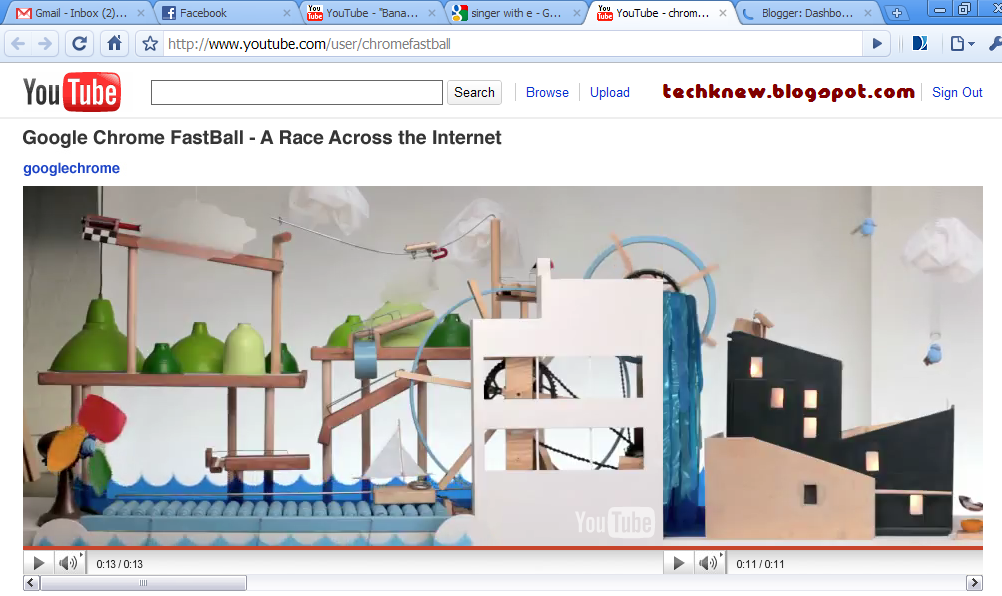
Google created a YouTube Video Game to highlight its new HTML5 feature. To complete the game, you have to answer several questions, which also boasts Google's dominance in internet search.


Previously on TechKnew :


May 20, 2010

"God Mode" in Windows 7

This is not something new though. It is GodMode in Windows 7. You can create a shortcut to it by following the steps below.
1. Create a new folder anywhere (prefereably on the desktop).
2. Then rename it using the following file name (without the quotation marks) : "GodMode.{ED7BA470-8E54-465E-825C-99712043E01C}" and enter.
3. Open the file.

You can use GodMode for settings from Devices and Printers to Mouse settings and Power Options in Windows 7.


Source: Cnet - Understanding Windows 7 GodMode

Apr 12, 2010

New Google Labs Feature in Gmail - Message Sneak Peak


Read more at Cnet.

Jan 7, 2010

*Buntu? Not anymore.

*Buntu means blocked or lost in Bahasa Malaysia.


Lost in Ubuntu? Cannot connect to the internet in Ubuntu? Too many command lines to remember?


With the Ubuntu Pocket Guide and Reference, you can now have a reliable source for all the help you needed long ago. From installing Ubuntu to managing and securing the system.


It's FREE!!

The book walks the user through installing Ubuntu, so all that's needed is a computer. Installing using Windows is covered, however.


Get it now from CNET or straight from the Ubuntu Pocket Guide and Reference's Homepage!


Details
Publisher : Ubuntu Pocket Guide and Reference


Operating systems: Windows 2003, Windows Vista, Windows Me, Windows NT, Windows XP, Windows 2000, Windows 98


Release date : January 19, 2009


File size : 1.97MB


License : Free


Download from : CNet - Download.com
                                
                                         or


   Ubuntu Pocket Guide and Reference's Homepage

Dec 28, 2009

Tweaking the Regional and Language Options in Windows 7 and XP

*Updated: 23rd of February 2011*

If you are using a program with language other than English (Chinese programs) and weird symbols like these ®" appeared instead, try tweaking the Regional and Language Options.

For Windows 7:
1. Click "Start"---> "Run" ---> type "Intl.cpl"---> "OK"


2. In the Regional and Language Options, select "Administrative" and subsequently "Change System Locale". Select the language you want to use for your program from the drop-down list.

3. Click "OK"

4. Restart your computer. You should be able to read the symbols now. Good luck!


For Windows XP:


1. Click "Start"---> "Run" ---> type "Intl.cpl"---> "OK"

2. In the Regional and Language Options, select "Advanced" ---> under Language for non-Unicode 
programs, select the language you want to use for your program.


3. Click "OK"


4. Restart your computer. You should be able to read the symbols now. Good luck!